
Getting an A+ on the Qualys SSL Test – Windows Edition
My previous article has gained much attention as a reference on how to get the highest A+ rating on the Qualys SSL Test. This ensures your TLS configuration on the server provides robust security. That article was for NginX on Ubuntu, but this guide targets Windows Server admins.
Setting up on Windows
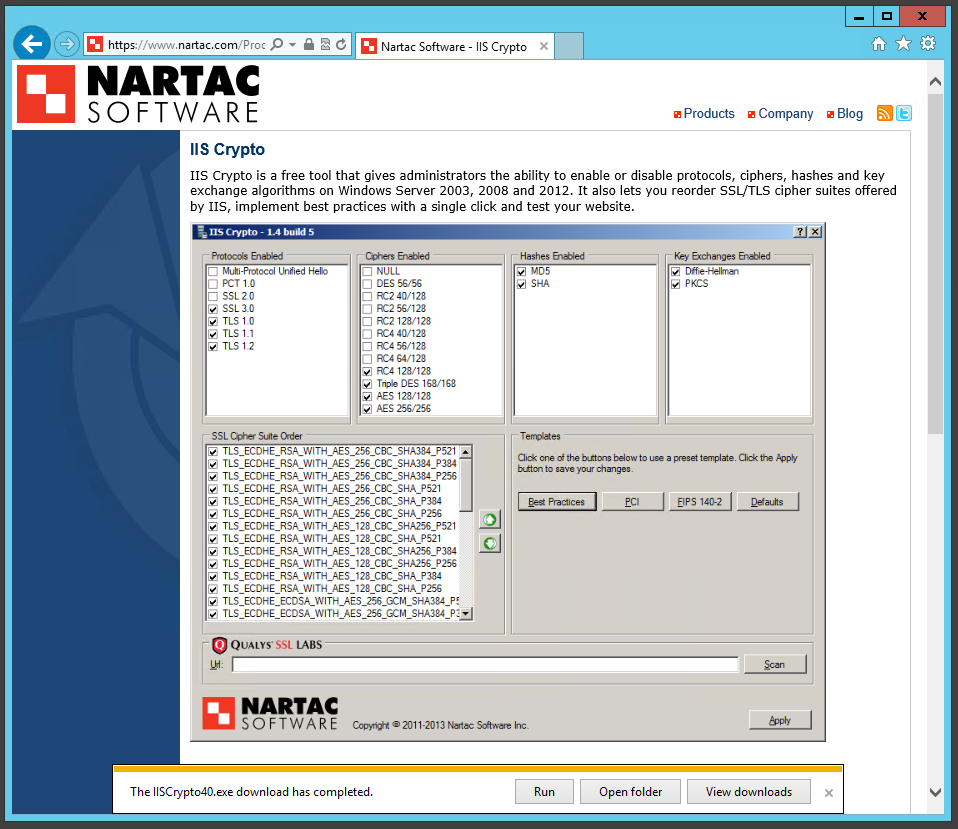
Most configuration happens in the registry, but IIS Crypto, a free tool, offers a GUI for configuring TLS settings quickly. Download it to begin.
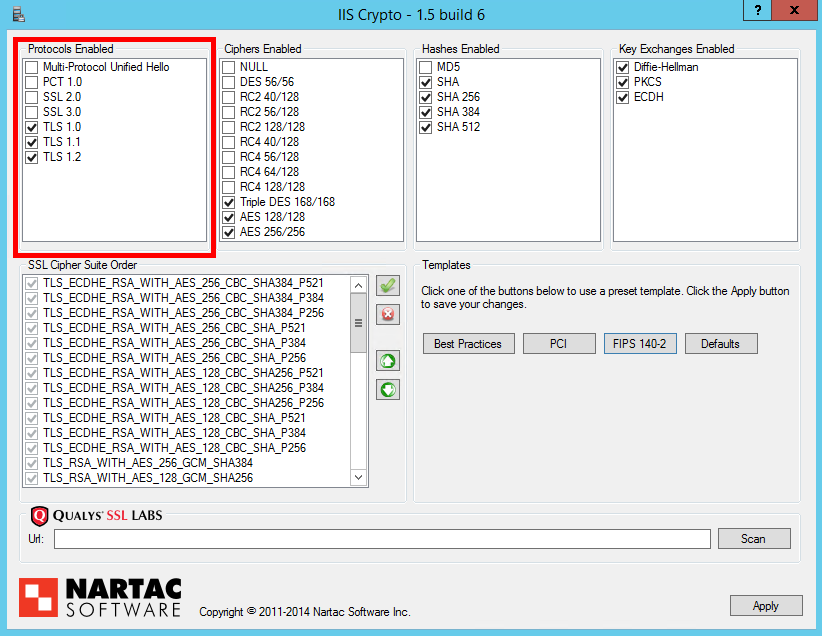
Protocols
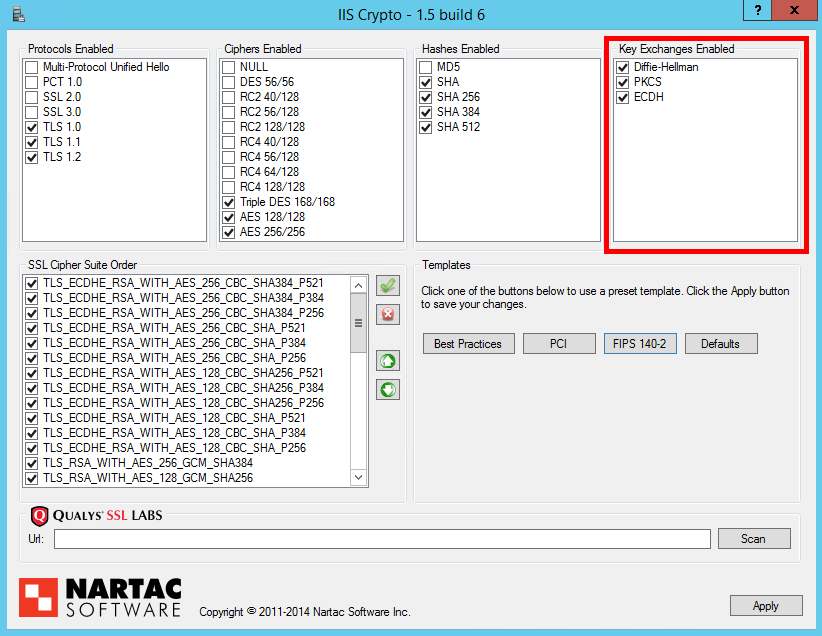
Following my POODLE blog, only TLSv1.0, TLSv1.1, and TLSv1.2 should be enabled. Select these in ‘Protocols Enabled’.
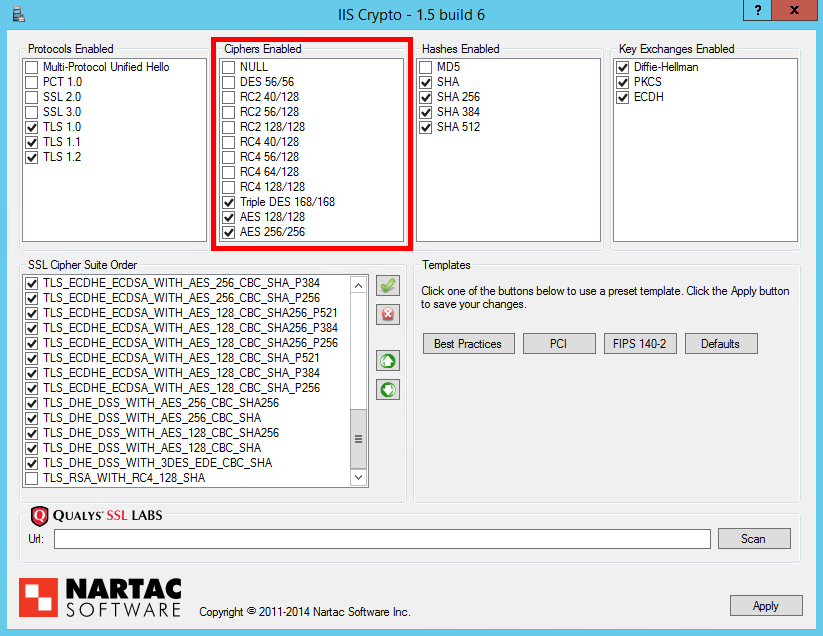
Ciphers Enabled
Enable only 3DES and AES cipher suites. Avoid RC4 (questionable), RC2, DES (not secure), and NULL ciphers (no protection).
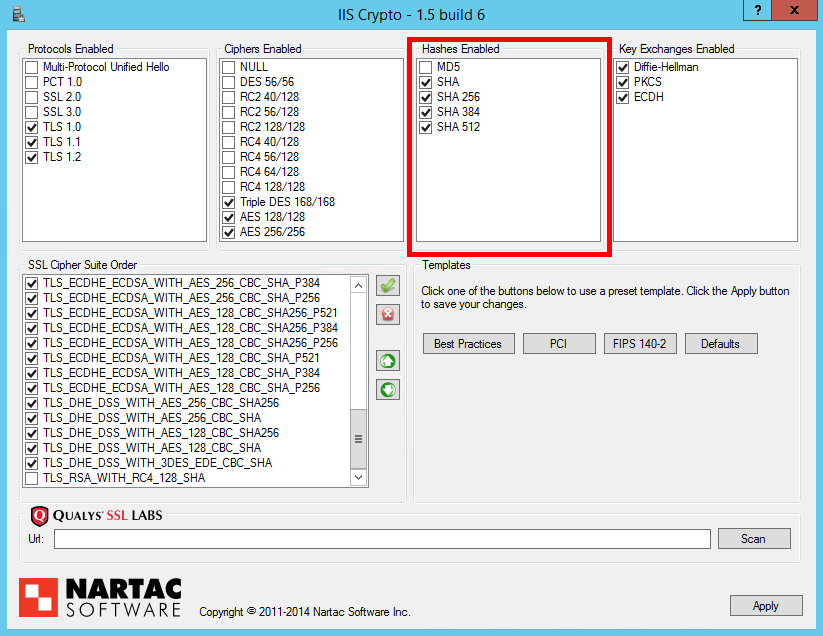
Hashes Enabled
Disable MD5 (insecure). Allow SHA variants which are currently acceptable for Message Authentication Codes.
Key Exchanges Enabled
Select all key exchange options. Diffie-Hellman and PKCS use RSA, while ECDH uses Elliptic Curve Cryptography.
Cipher Suites Ordering
Order your cipher suites to prioritize Perfect Forward Secrecy (PFS). ECDHE suites should come first, followed by DHE for older clients, then RSA for the rest. Disable TLS_RSA_WITH_RC4_128_SHA.
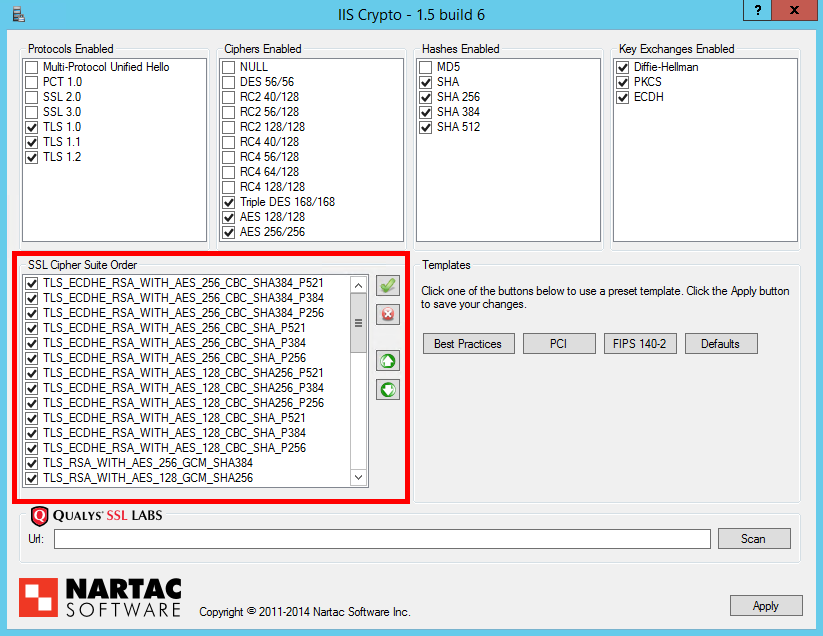
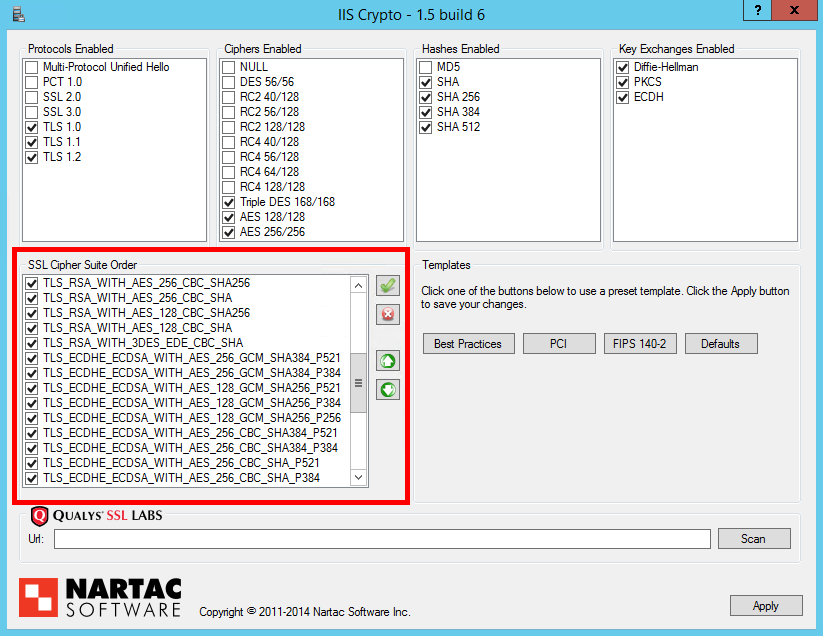
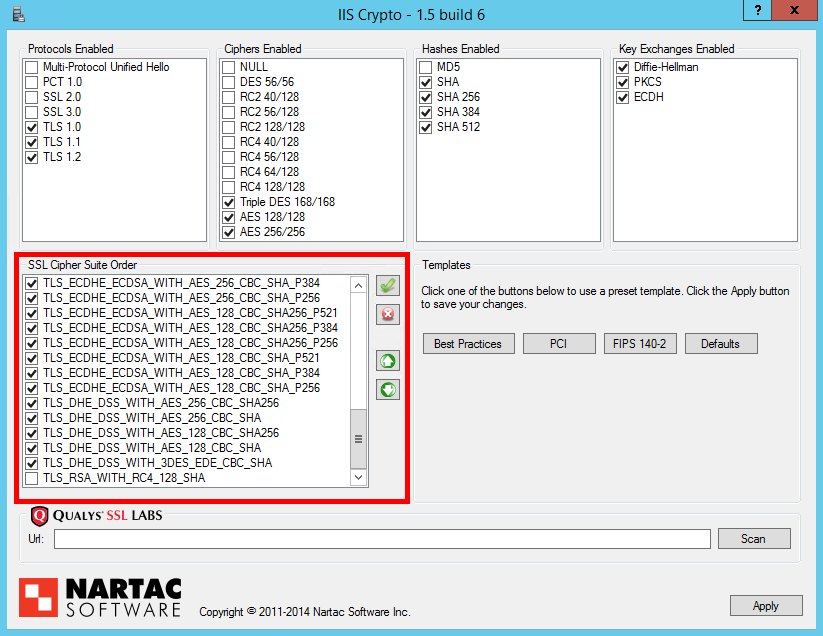
Click ‘Apply’ and restart the server to activate changes.
Windows requires a reboot for registry TLS changes; Linux does not. After reboot, check your rating at the Qualys Test.
OCSP Stapling
OCSP Stapling is enabled by default on Windows Server 2008+. It’s recommended to use it though it doesn’t affect your SSL score.
Perfect Forward Secrecy
PFS protects session data if the server key is compromised. Support and prioritize ECDHE and DHE suites for robust PFS.
SHA1 vs SHA256 Certificates
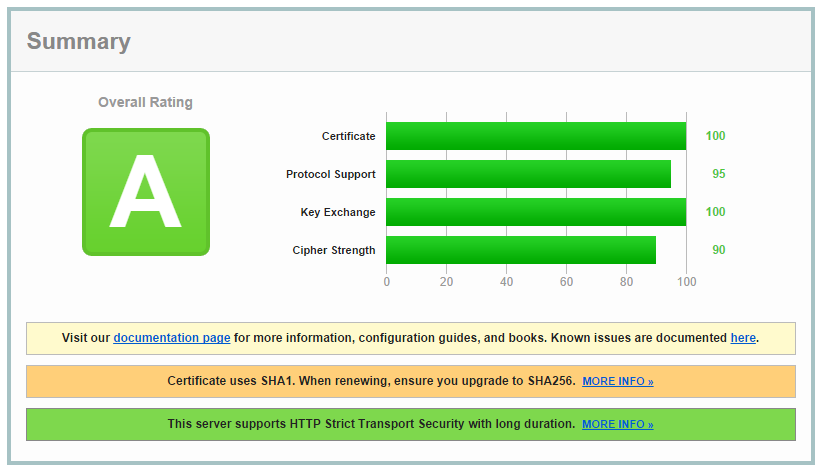
Google announced the phase-out of SHA1 certificates, starting with HTTPS warnings on sites using SHA1. Qualys SSL Test marks sites with SHA1 certificates, preventing an A+. Replace SHA1 leaf and intermediate certificates with SHA256.
TLS_FALLBACK_SCSV
This feature protects against protocol downgrade attacks by rejecting fallback connections. Required for an A+ rating but not yet supported by IIS, capping Windows servers at A for now.

Alternatively, supporting only TLSv1.2 can achieve A+ by removing downgrade options.
Strict Transport Security
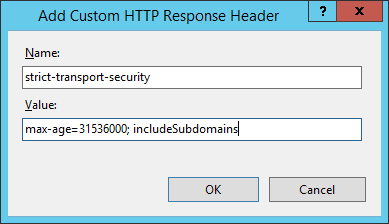
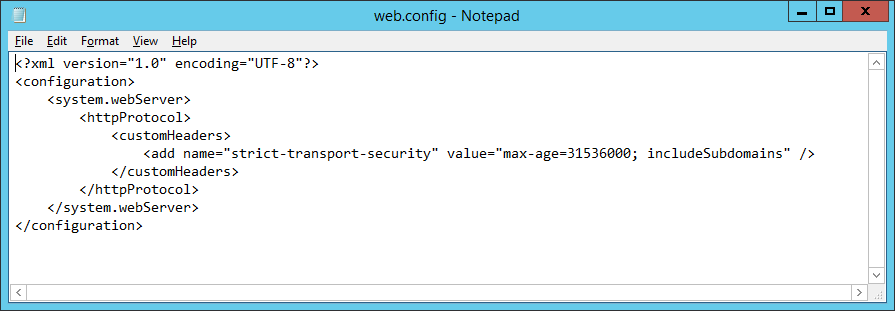
To move from A to A+, enable HTTP Strict Transport Security (HSTS). Add a custom header strict-transport-security with max-age=31536000; includeSubdomains to enforce HTTPS for one year including subdomains.
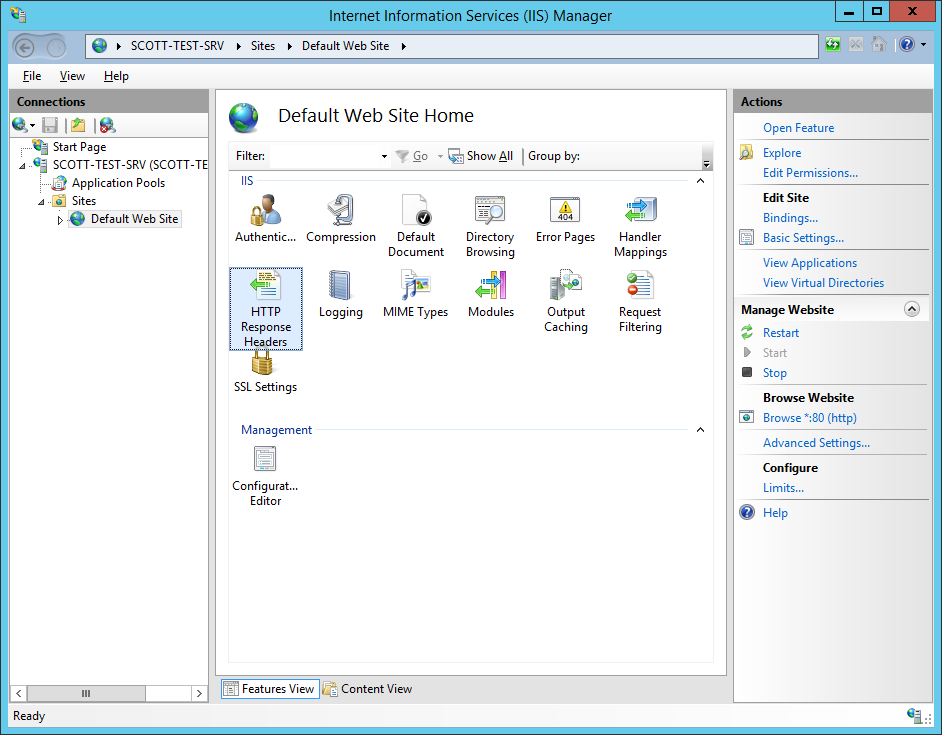
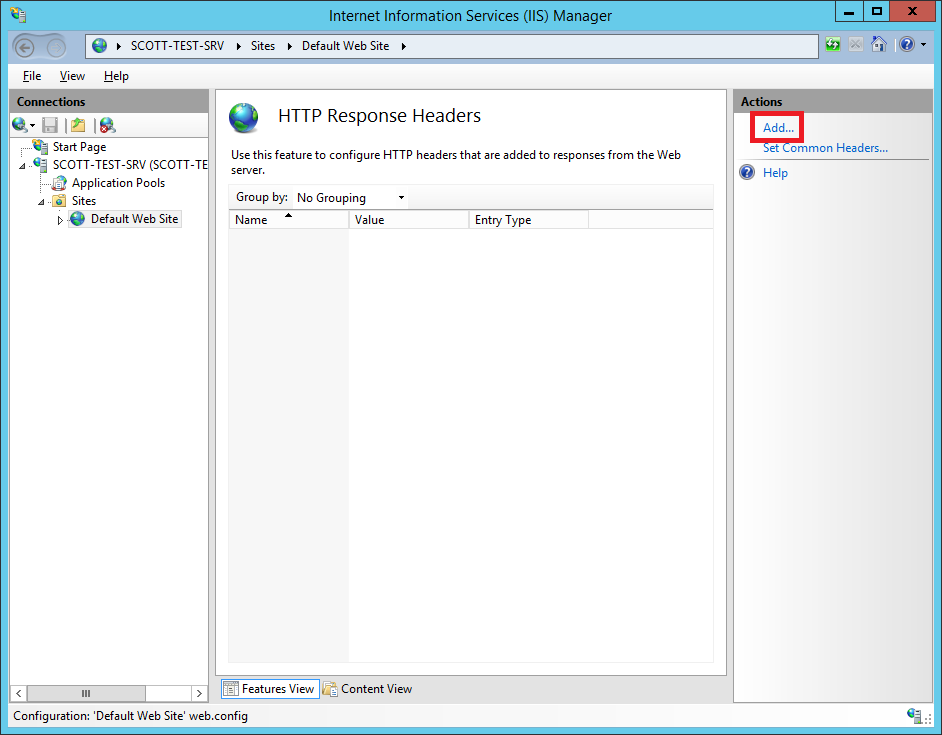
Use IIS Manager → HTTP Response Headers to add this header or update your web.config file.
After that, retest your site at Qualys SSL Test to confirm your A+ rating.