
Add Task Manager to the Right-Click Menu of the Taskbar in the Registry
- Right-click the Start button and select Run from the menu.
- Type
regeditin the Run box and and press Enter.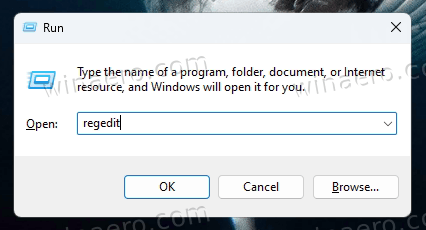
- In the Registry Editor, navigate to the HKEY_LOCAL_MACHINESYSTEMCurrentControlSetControlFeatureManagementOverrides4 key.
- Right-click the 4 subkey and select New > Key.
 Key” width=”639″ height=”421″ data-src=”https://winaero.com/blog/wp-content/uploads/2022/10/enable-task-manager-in-taskbar-right-click-menu-6.png” />
 - Name the new key as 1887869580.
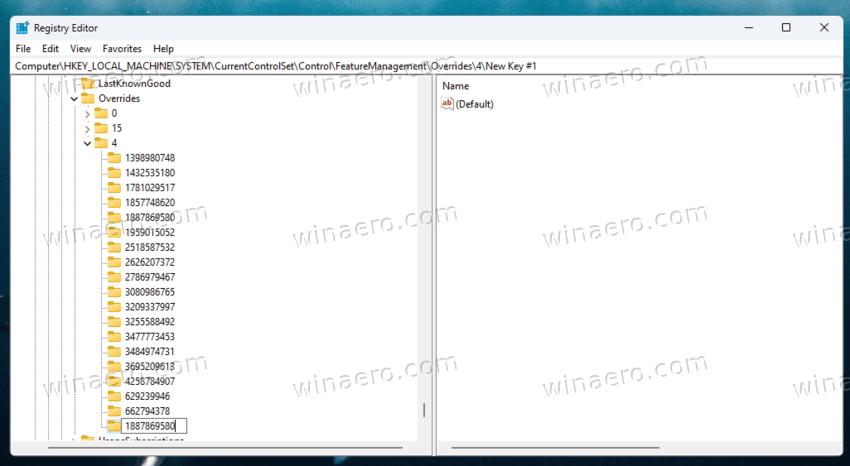
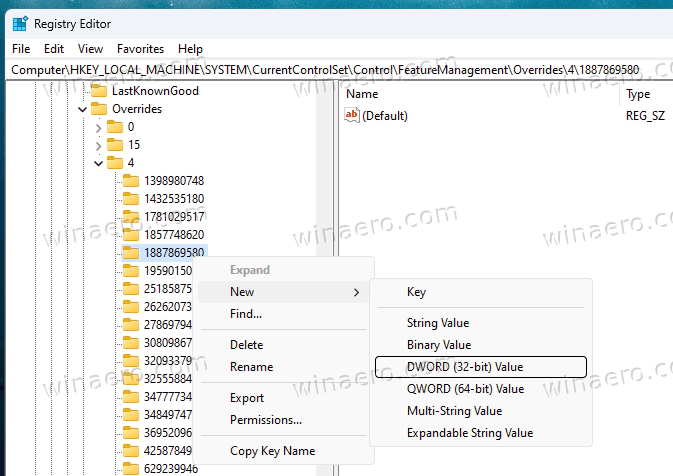
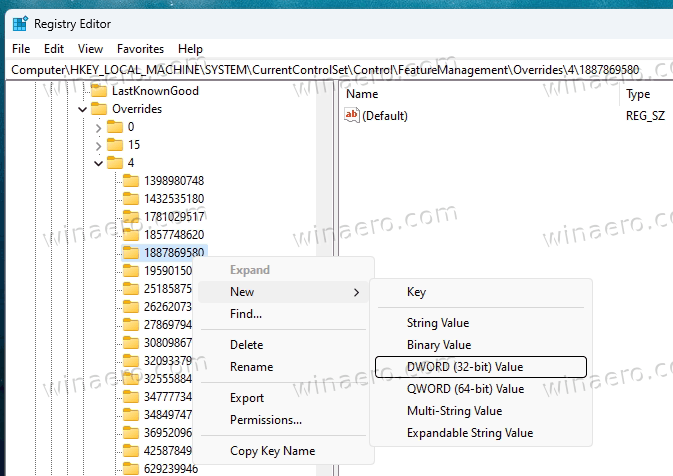
- Now right-click the newly created 1887869580 key and select New > DWORD (32-bit) value.
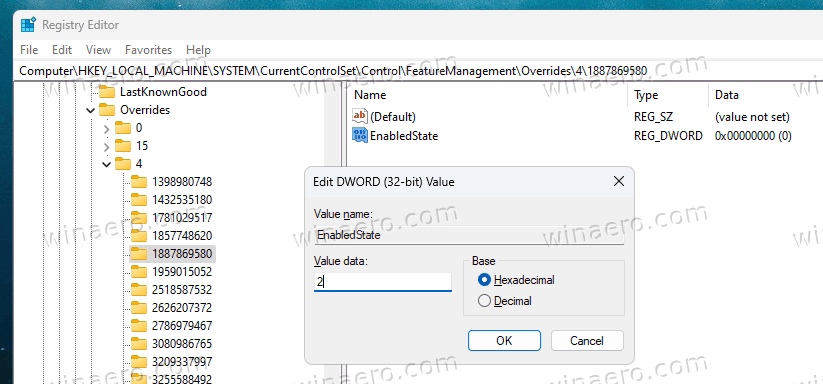
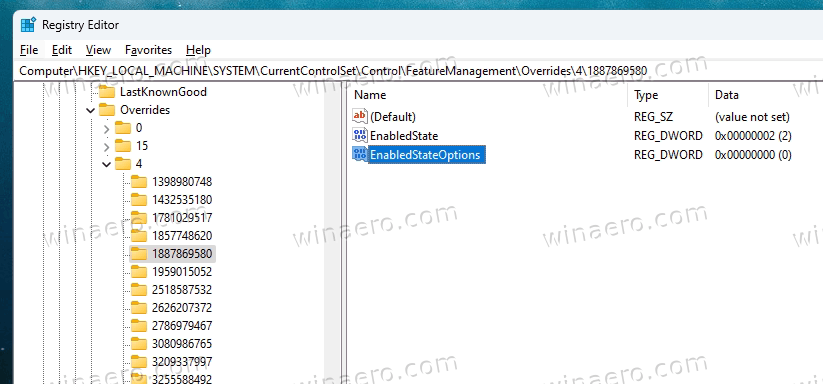
- Name the new value as EnabledState, and set its value data to 2.
- Now, right-click the 1887869580 key once again and again select New > DWORD (32-bit) value.
Name it as EnabledStateOptions and leave its data as 0.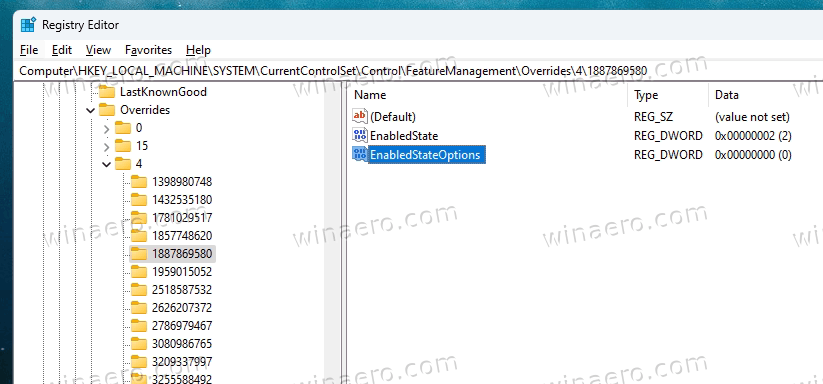
- Reboot Windows 11.
Regardless of the method you used, you should now have the Task Manager in the taskbar right-click menu.