Goline It Services Logo

News

  • GOLINE SA is excited to announce a new partnership with NetApp, a global leader in cloud data services and storage solutions. This collaboration aims to help organizations modernize their IT infrastructure, streamline data management, and enhance performance across cloud and hybrid environments. Modern Data Solutions for Businesses Through this partnership, GOLINE integrates advanced data management solutions, enabling businesses to securely store, manage, and access critical information across cloud, on-premises, or hybrid setups. Clients can benefit from: Flexible and scalable storage solutions to meet growing data needs Simplified management of cloud and on-premises environments Enterprise-grade security for sensitive and mission-critical data...
  • GOLINE SA is proud to announce a new strategic partnership with Omnissa, a global leader in digital workspace platforms and Horizon Cloud Service solutions. This collaboration marks a significant step forward in helping organizations embrace secure, flexible, and high-performance work environments. Why Choose Omnissa for Your Business? The platform enables virtual desktops, applications, and unified endpoint management. Organizations can deploy scalable workspaces across cloud, hybrid, or on-premises setups. Key benefits include: Easy access to desktops and apps on any device Centralized management for Windows, macOS, iOS, Android, and ChromeOS Strong security with access controls and multi-factor authentication Automated scaling to...
  • Goline is proud to announce a strategic partnership with Cloudflare, the world leader in web performance and security solutions. This collaboration aims to provide goline.ch customers with state-of-the-art protection against cyber threats while delivering lightning-fast website performance. Through this partnership, Goline integrates Cloudflare’s advanced services, including DDoS protection, CDN caching, DNS security, and edge computing, allowing businesses to secure and optimize their websites effortlessly. Users will benefit from improved page load speed, enhanced reliability, and robust defense against malicious attacks. This partnership with Cloudflare enables goline to offer unmatched security and performance solutions to clients. By leveraging Cloudflare’s cutting-edge technology,...

ManageEngine ADSelfService Plus – ADSelfService_Enroll.hta

Biagio Galati Security 30 August 2023

What is the Self-Enrollment process and how does it work?
The Self-Enrollment process is an activity that allows users to register their mobile phone number and associate it with their profile. This will enable the user to perform password resets and/or profile unlocking directly from their smartphone through identity verification.

Script integration
The ADSelfService_Enroll.bat script has been created and integrated into the existing Windows login script.
The script is executed only if the logging-in user is NOT part of the “Domain Admins” group.

goline.scr


IF InGroup(“Domain Admins”) = 0

? “Execute ADSelf Service Enrollment…”
RUN @LSERVER + “NETLOGONADSelfService_Enroll.bat”
ENDIF


ADSelfService_Enroll.bat
@echo off
%SystemRoot%System32mshta.exe %LOGONSERVER%NETLOGONADSelfService_Enroll.hta

The .bat script opens the ADSelfService_Enroll.hta file using mshta.exe.
This file contains the actual script to carry out the Self-Enrollment procedure.

What happens for users who have already completed Self-Enrollment?
If an user has successfully completed the Self-Enrollment process, the script will recognize this status and allow the user to access the system as usual, without any further actions required.
No window will appear in this case.

What occurs if the user has not yet completed Self-Enrollment?
If an user has not yet completed the Self-Enrollment process, the script will detect this status and display a Self-Enrollment screen after the user logs in.
Clicking the “Enroll” button will initiate the guided procedure.
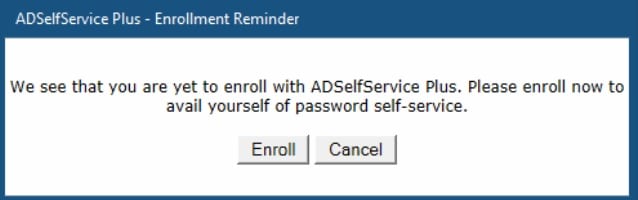
Enroll

For the first two weeks, a “Cancel” button will be available, allowing the user to temporarily bypass the Self-Enrollment process and access the system as usual.

What happens after the first two weeks?
After the initial two-week period, the “Cancel” button will be removed from the Self-Enrollment screen. This means the user can no longer avoid the process and will be required to complete Self-Enrollment to access the Windows system.
To remove the “Cancel” button, simply uncomment the following code present in the ADSelfService_Enroll.hta file and delete the currently active on

active on

Get more info about our society

5 / 100 SEO Score
0 0 votes
Article Rating
Subscribe
Notify of
0 Comments
Oldest
Newest Most Voted
Inline Feedbacks
View all comments
0
Would love your thoughts, please comment.x
()
x
| Reply